HOMESERIES 80
COMMUNICATORS
SERIES 60
1.x-2.x
S60 3rd
& 5th EDITION
UIQ 2.xUIQ 3.xSERIES 90SOFTWARE SHOPFORUMCONTACT

Symbian OS S60 3rd Edition Section: Introduction/Reviews of S60 3rd Edition smartphones
  S60 3rd Edition section
Home / Latest News
S60 Software Catalog
S60 Software Shop
S60 Downloads
FAQ & Tips
Smartphone Gallery
Communicator Gallery
Reviews
S60 Discussion Forum
  S60 3rd Edition phones
Nokia E90
Nokia N95
Nokia N93
Nokia E70
Nokia E61
Nokia E60
Nokia N80
Nokia N71
Nokia N91
Nokia N92
Nokia 3250

Older Series 60 smartphones are listed in the separate
Series 60 1.x-2.x section
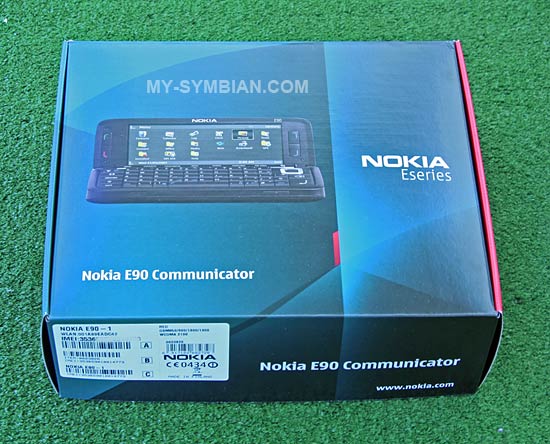
  Nokia E90 in short
- Symbian OS v9.2
- S60 3.1
- Feature Pack 1
- 330 MHz OMAP2420 (ARM11)
- 128 MB RAM
- HSDPA 3.6 Mbps
- UMTS, EDGE, GPRS
- WLAN B/G 54 Mbps
- 3.2 Mpix autofocus camera
- VGA 30 fps video recording
- internal GPS receiver
- 128 MB storage memory
- microSD card slot
- quadband GSM
- 800x352 internal screen
- 240x320 cover screen
- full QWERTY keyboard
- Bluetooth 2.0 with A2DP
- FM radio
- stereo speakers - 2.5" audio connector

Nokia E90 Communicator review
Michal Jerz, 5-12 February, 2007
Updated based on production unit, June 10, 2007

Page 1 | Page 2

PART II: SOFTWARE

The history and the presence

The E90 is the third milestone in Communicators' internal software history. And this time it finally has a very clear and unrestricted future ahead as it is now part of the Nokia's most popular software platform used by hundreds of millions of people worldwide.

The first four Communicator models available between 1997 and 2001 (the 9000, 9000i, 9110, 9110i) were based on GEOS operating system - one of the first GUI based operating systems, running on top of DOS on Intel x86 processors. GEOS became known already in '80s when it was released for Commodore 64/128 computers.

The 9210, released in 2001, was not only the first Communicator based on Symbian OS, but also the first Symbian OS smartphone (if we don't count the Sony Ericsson R380, which wasn't an 'open' device as it didn't support 3rd party software and it never became too popular). The 9210 and all models following it (9210i, 9290, 9500, 9300 and 9300i) were based on Symbian OS v6 and then v7 and the Series 80 platform derived from Symbian's Crystal user interface. Switching from GEOS to Symbian OS meant no backward compatibility and almost no software available for 'early adopters' of the 9210. Fortunately, the situation has changed over the years and Series 80 Communicators users can now take advantage of hundreds of poweful third party applications.

As mentioned above, the E90 is another huge leap in the 10-year history of Nokia Communicators. It is no longer Series 80 based but instead it utilizes the S60 3.1 (3rd Edition Feature Pack 1) platform running on top of Symbian OS 9.2. Why is that?

Symbian OS 9 and above introduce many fundamental changes including new kernel, new compiler, new optimized binary format, modified file system structure, new, much tighter security system and so on. This all means: no backward compatibility with pre-9 OS versions. So even if Nokia wanted too keep the Series 80 platform for the Communicator range, they would have to create a new edition of the platform based on Symbian OS 9.x which would involve a lot of work and funds but it would still mean no backward compatibility with old S80-based Communicator models and 3rd party software! The only way to retain compatibility would be to stay with old, pre-v9 Symbian OS version, which would make absolutely no sense as it would mean no access to the latest mobile technologies, or simply no space for any progress. So instead of heading for the blind alley, Nokia decided to switch to the S60 (formerly called Series 60) platform, installed in hundreds of millions of smartphones and supported by thousands of experienced developers.

The E90, the first S60 3rd Edition based Communicator, unlike the 9210 in the past, doesn't force those who upgrade from the previous models to patiently wait for software to start appearing. While in case of the 9210 it took some time for Series 80 compatible software to start coming out, the E90 is fully compatible with existing S60 3rd Edition software! Buy the new Communicator, bring it home, configure Internet or WLAN connection and simply start browsing the software catalog and downloading whatever you want. And the popularity of S60 based smartphones guarantees that quality software will keep coming faster and faster.

Is the S60 platform better than the old Series 80 platform when it comes to functionality, ease of use, features? Well, as usual, some things are better while some other things are worse. For instance, it is next to impossible to highlight a text in the current edition of the web browser. But, on the other hand, the browser itself is so much better, faster and compatible with even the most advanced websites... Overall, there are much more advantages than disadvantages, and it's an open system so even if some features are missing you'll be surely able to add them using 3rd party solutions.

So how does the new S60 UI look like?

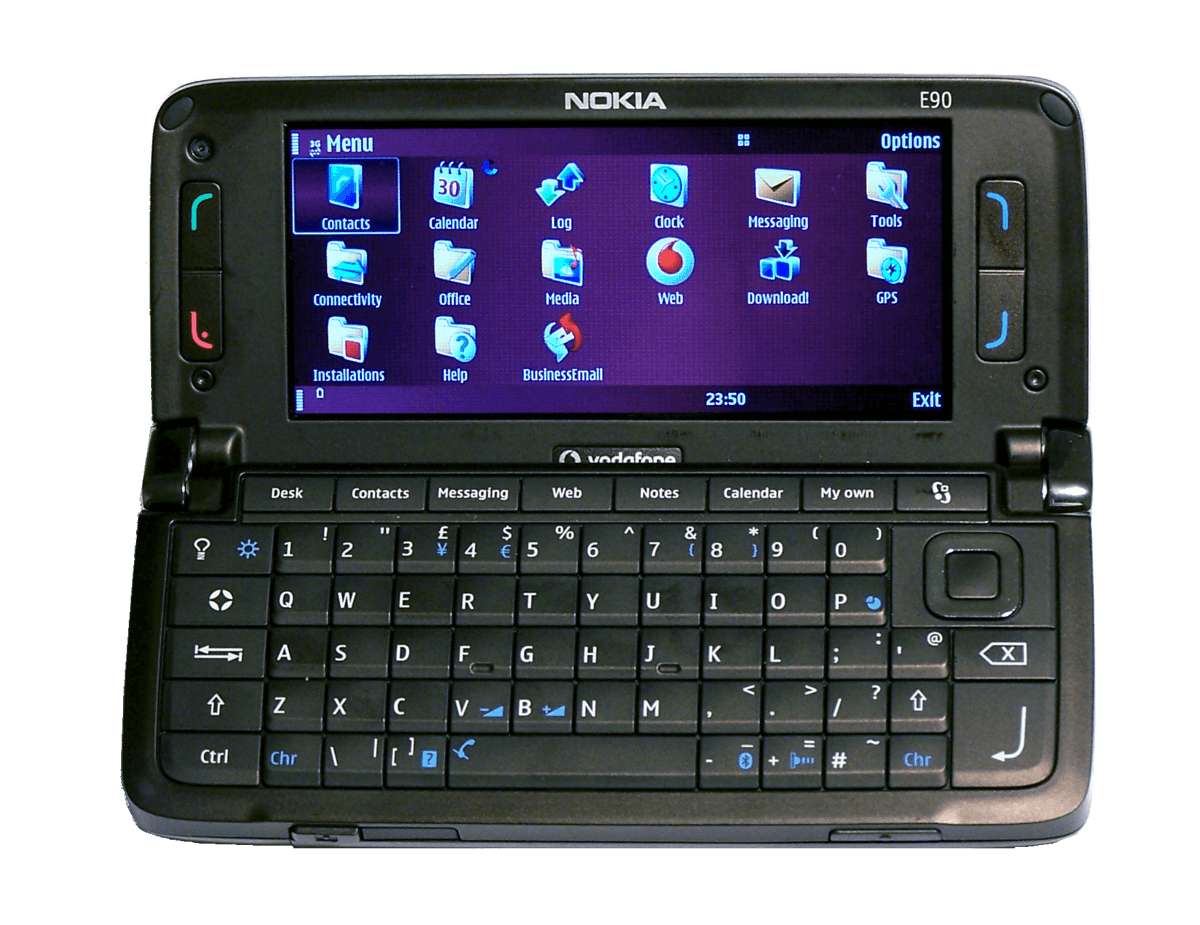
As described in the Hardware part, the E90 has two fully functional screens. Both provide access to all system applications and functions and switching between them is fully automatic as you open or close the cover. The external display shows the UI and system applications just as they look on any other S60 3rd Edition smartphone with a QVGA screen. The internal screen, thanks to its high resolution and wide proportions, provides an EXTENDED view in which many applications show additional information, more functions or simply more content at once. You can think of this view as of a mixture of S60 UI and the good old Series 80 UI.

For example, the default view of the Contacts application on the small external screen shows only a list of your contacts (first and last name + a small thumbnail on the title bar) as on all S60 smartphones. If you want to see details of a contact, you have to click his/her name, which will open a new screen with full contact information. On the large screen, however, the view is much more advanced and it closely resembles the the look of Contacts application of Series 80 Communicators - the screen is divided into two parts: the list of contacts on the left and contact details preview window on the right. So on the large screen you don't have to click on contact name and open a separate screen to see contact details, you see both the list and the details of a highlighted contact at once. The same rule applies to many other applications, including Calendar (week or month or to-do view on the left, list of entries on the right), Messaging (list of accounts/folders on the left, their contents on the right), File manager (folder tree on the left, folder contents on the right), Media gallery (list of multimedia files on the left, quick preview on the right) and so on. So if you are one of those who were afraid that S60-based Communicator would mean simpler and primitive UI compared to the Series 80 platform, don't worry - only the external UI is the same as on other S60 devices while the internal UI is considerably extended, maybe not exactly the same but coming really close.

The E90 does not have the pull down menu system known from the Series 80 platform. There is also no CBA pane (four soft buttons on the right side of the screen present in all previous Communicators). Instead, like all S60 smartphones, the E90 has two soft buttons (located under the external display and on the right side of the internal screen) serving as shortcuts to applications, function buttons, or menu buttons, depending on application/view and context. Yes, two is less than four so die-hard fans of previous Communicator models may feel a little bit disappointed that now some functions may require two clicks instead of just one but it is a matter of getting used to and I wouldn't say that it compromises functionality in a serious degree. The soft buttons open a menu that pops up in the centre of the display; they can have sub-menus and further sub-items. The only thing that's missing and would certainly make menu operations easier is some sort of Cancel/Back/Escape button that could be used with the left hand.

The E90 also has the usual green/red Send/End buttons used to start/end/accept/reject phone calls - they're located below the external screen and on the left side of the internal screen. The green Send button only works when there's something to dial - a number keyed in on the standby screen, a contact selected in the Phonebook application, a number highlighted in a document, etc. On the standby screen, if no number is entered, the Send key opens the Call log with recently dialled numbers list. The Send key can also be used to quickly invoke the "Send as..." menu whenever it is appropriate. In all other cases the Send button is not active. The red End button, besides ending or rejecting calls, quickly switches you to the standby screen and closes all applications working in the background.

The internal screen has two status bars: the one on top shows signal level indicator, GSM network name, status icons: WLAN network in range, unread messages, Bluetooth on/active, etc., and the current function of the upper soft button. The lower status bar shows battery level indicator, current profile name, clock, and the current function of the lower soft key. The lower status bar is also used by some applications to show tabs, e.g. the Contacts application shows two tabs letting you quickly switch between the list of contacts and the list of contact groups. Depending on application, some other information, icons or UI elements may be additionally shown on either or both of the bars, for instance multipage documents display information about the current page and the total number of pages.

Active standby, Menu, Folders

Instead of Series 80's Desk, the E90 features the S60's standard "Active standby" screen. It looks basically the same on both screens and the only difference is the number of visible shortcut icons: 6 on the external screen and 8 on the internal screen. And it raises a question why only 8 if the internal screen could fit 15 icons. The Active standby screen may be configured to display notifications about the following events: missed calls, new email, new SMS/MMS and new voice message and about calendar events and to-dos for today. You can also enable WLAN scanning to report discovered or connected WLAN networks on the standby screen. Both soft buttons can be assigned to most frequently used applications or functions. So I think it's fair to say that E90's Active standby screen should not make previous Communicators' Desk screen users disappointed....

Just like Desk was replaced by the Active standby, the Extras screen has been replaced by the standard S60 Menu. It's where you can find all system and 3rd party applications, divided into folders. You can create your own folders, rename existing folders (including the standard ones), move applications between folders, and quickly uninstall 3rd party software (just press the Backspace/Delete key and confirm the displayed requester). There are even two kinds of folder and application icon sets available: still icons optimized for menu speed and animated icons for those who like such things :-) Third party applications installed by you go by default to the "Installed" folder but you can move them to any folder of your choice or to the main menu. Isn't it much more flexible than in the old "Commies"? It surely is.

Personalisation

Just like any other S60 smartphone, the E90 is fully skinnable. What's more, it is also fully compatible with existing S60 themes (though some of them, not scalable and not prepared with the internal screen's resolution in mind, may look ugly). With themes, you can radically change the look of most of UI elements: title/status bars, window backgrounds, color palette, font and font color, ringtones, the look of battery/network indicators, the look of the digital and analog clock shown on the Active standby screen, etc. You can also customize screen wallpapers, screen saver (Flash animations are supported) and the way the main Menu works (grid or list).

System applications

As I already mentioned, this is where users of previous Communicator models will find the biggest changes. Being based on S60 3rd Edition, the E90 system software originates from small screen Series 60 smartphones, with all the consequences. The E90 product team did A LOT to to enhance standard S60 applications to make use of E90's unique features (huge screen, keyboard) and implement some functions Series 80 devices' users got used to (e.g. keyboard shortcuts), but with some of them, especially PIM software (Contacts, Calendar) and the Office suite, they didn't manage to achieve full functionality and ease of use known from older Communicators. Having said that, I also need to remind that the E90 works much faster than 9210 or 9500/9300 so even if some functionality is missing or available in a less intuitive way, the overall performance and the powerful hardware of the E90 in most cases makes working with the E90 easier and more convenient. So it's a mixture of some cons and pros and the overall impression will depend on your personal needs and preferences. Let's take a closer look at the most important applications.

Contacts

While on the external screen the Contacts application looks like on any other S60 smartphone, the internal screen view has been optimized for E90's large display and it looks similarily to Series 80 Contacts application. The left pane contains a list of contacts or contact groups while the right pane shows details of a selected item. This layout saves time as you don't have to open a contact card each time you want to check some information (e.g. address). In general, Series 80 Communicators users will feel at home, with the only exception being the overly simplified Search function. Unfortunately, it's the "Quick search" type function which only checks First name and Last name fields. If you need to find a contact matching information stored in other field type (e.g. city or phone number) you will have to use separate "Search" application located in the Office folder. It's very powerful and it allows searching for information in all databases (messages, email, calendar, tasks, notes, contacts) and even inside of files stored on the device, but integrating more advanced Search function directly into the Contacts application would be much more convenient and more elegant. In order not to sound to pesimistic, I would like to stress that finding a contact (using both the simple Contacts' Search function and the advanced Search application) now takes just a second or two, which is a huge improvement compared to Series 80 Communicators.


Calendar

Like with Contacts, the Calendar application view on the internal screen has been tweaked to make good use of E90's large screen and it resembles the look of Series 80's Calendar. The left pane shows selected Calendar view (Month, Week, To-do; sorry, there is no Year view) and the right pane displays details. With the Month view on the left side and a day with some entries selected, the right pane lists all entries for that day. Pressing the rocker key switches the left pane to a list of entries for that day (i.e. to what the right pane was showing) and the right pane will switch to showing all details of a selected entry. To create new entry it is enough that you start typing - simple and easy, isn't it?


What I don't like about the Calendar application is first of all lack of support for Outlook categories. Without it, the use of Calendar's integrated To-do function is limited to just simple reminders whereas with proper support for Outlook categories it could serve many advanced purposes. Considering that the E90 is a business-oriented tool, this is a very serious omission. Another thing that should be improved is the size of fonts used to display entry details. They're simply too big, taking precious space where much more content could have been made visible.

The Calendar has no colors, icons, templates or things like that. However it supports attachments (active notes) and 3rd party email solutions. It's also possible to add meeting requests to Calendar. If you need more advanced PIM functionality, you may want to take a look at AquaCalendar and Project applications, both available for the S60 3rd Edition platform and working well on the E90.


Messaging

Let's start from mentioning two important things lacking in the E90 compared to Series 80 Communicators: there is no fax support (it's a hardware thing so you can stop dreaming about 3rd party software implementing it) and the email client doesn't support HTML. Instead, it shows HTML emails as text with the embedded objects (the HTML itself, pictures, etc.) being available as attachments. If you want to see an email message in its original HTML format, you have to open the HTML file attached to the message and it'll be shown in the Web browser. Other attachment types will also be opened in appropriate applications (e.g. documents or spreadsheets in QuickOffice, audio files in Media player, pictures in Gallery application, etc). I must say that lack of HTML support is slightly disappointing in a device of this kind and it can be considered a "downgrade" compared to previous Communicator models. If you get a lot of HTML emails and you need more advanced support for HTML messages, you may want to check the ProfiMail application.

Like in case of Contacts and Calendar, the Messaging application has been optimized for E90's large screen. The left hand side shows a list of available folders and mailboxes while the right hand pane shows their contents, i.e. received/sent email messages, SMS/MMS messages, delivery reports, etc. Clicking on a folder or inbox switches to a full screen view where all messages of that folder or inbox are listed. Clicking on a message opens it on full screen.


The good news for Series 80 Communicators users is that Messaging on the E90 works very fast. No more waiting for the application to do something, everything works smoothly. Push email solutions supported by the E90 include Nokia Intellisync Wireless Email, Blackberry Connect, Mail for Exchange and Visto Mobile. I couldn't test them because the appropriate download page isn't available yet.

Nokia E90's Messaging application supports Text To Speech technology. Just select a message and choose the "Listen" command from the menu and it will be read out for you. English language is available by default but lots of other languages can be downloaded for free using E90's Download! application. The "Speech" application located in "Tools" folder lets you choose the language and voice (male or female), enable automatic language recognition and adjust speed and loudness.

Office

Unlike previous Communicators which were equipped with office suite consisting of Documents, Sheet and Presentations applications originating from EPOC/Psion times, the E90 ships with QuickOffice software in ROM. The included version is 3.8, supporting a (paid) upgrade to version 4.0. The 3.8 version should be sufficient for most users occasionally browsing or editing office documents, while the 4.0 version can provide power users with better compatibility and more advanced support for editing embedded objects like tables or images. Overall, compatibility with documents saved with Microsoft Office is high and and you won't experience any serious problems, but documents saved with OpenOffice often have formatting issues and other undesired modifications. What's missing compared to Series 80 Office suite is optimization for the Communicator, e.g. full set of useful keyboard shortcuts. Quickpoint (presentation editor/viewer) should make better use of E90's wide screen and provide various zoom levels. The built-in PDF viewer from Adobe works very well and renders documents very quickly, and the large RAM memory of the E90 makes it possible to open even big and complicated documents. All office applications have built-in Print support.


Web browsing

The E90 has the standard S60's Safari-based Nokia browser which, compared to Series 80's Opera browser, scores really well. First of all, it is very fast and it renders correctly most of web sites, as long as they are not overloaded with Javascript and things like that or if the server doesn't force mobile version of the site instead of the normal one (this is because the browser identifies itself as "SymbianOS/9.2; U; Series60/3.1 NokiaE90...." and some websites automatically switch to the mobile version if the "SymbianOS" part is found). In my personal ranking of mobile browsers, the E90 browser takes second position right after the Opera browser of the Linux-based N800 Internet Tablet, which (on very similar hardware) works even faster, correctly renders virtually any websites (including Google Video and YouTube not supported by E90) and offers great fit-to-screen mode missing from the Nokia browser (Nokia's semitransparent MiniMap helps in navigation but it obviously doesn't reduce the need for scrolling wide pages horizontally). However, considering that most of properly designed websites fully fit on E90's 800 pixel screen, in most cases you will only have to scroll vertically.

Flash animations are disabled by default (and in such case you have to click on a flash symbol and confirm that you want to display it) but can be enabled in browser's settings. The E90 supports FlashLite v2 and this is the reason why Google or YouTube videos are not supported. Only version 3 will bring support for FLV content but it'll surely take a while before it's officially available, especially that it hasn't been released yet.


Probably the most annoying "feature" of the E90 browser is its inability to highlight and copy/paste any text (except for webforms and text fields where the usual Ctrl+C / Ctrl+V combination can be used). The browser supports multiple "windows" but new window opens only when a web page requests so, it can't be done manually.

Being an S60 3rd Edition Feature Pack 1 device, the E90 only has one browser integrating Web, WAP and RSS feeds reader in one. RSS feeds can be updated automatically based on defined interval. Like in case of Office applications, the Web browser has built-in Print support.

Overall, Series 80 Communicator users switching to E90 will love the browser for its performance (with a fast WLAN or 3G connection it only takes seconds to load and render a page) and compatibility while users of other S60 3rd Edition phones will like the way it takes advantage of E90's wide, high resolution display. Hopefully, in some future updates Nokia will make it possible to copy text, which will make the browser almost complete.

GPS and navigation

The E90 is the second (after the N95) S60 3rd Edition smartphone with built-in GPS receiver. As mentioned in the hardware part of this review, it is based on Texas Instruments' NaviLink solution. It's not as sensitive or as fast as the most popular SiRF Star III chipset and it requires some patience while you're waiting for it to lock on satellites but overall it performs really well. It usually takes considerably longer than SiRF III based devices to get fix but then it doesn't lose signal even under heavy foliage or if you put the phone in your pocket. I always test new GPS receivers in my car - it has an 'atermic' windscreen covered with a thin metal layer reflecting some wavelengths and, as a side effect, also weakening the GPS signal. Some commercially available receivers fail this test and require an external antenna but I'm happy to announce that the E90 placed under the windscreen or even on the passenger's seat gets fix and navigates without any problems or breaks, so it's not that bad. The GPS receiver of the E90 is also quite power efficient: one hour of navigation on the large screen with backlight on and set to max level only consumes one bar (out of 7) of the battery indicator. The best way to acquire a 'lock' is to stand still; in such case it'll take something between 20 seconds and 2 minutes. If you move, it may even take twice longer. It seems that it doesn't matter if the cover is open or closed so while hiking you can use the smaller external display to see your current position or navigate.

The E90 comes with Nokia Maps (Smart2Go) software preinstalled in ROM. Maps are available for free and can be 'dynamically' downloaded by GPRS/3G connection as you navigate or you can download maps of whole countries or regions using Windows-based Nokia MapLoader application and pre-install them on the memory card before starting your trip. By doing so you ensure that you will have access to the map even if network connection is unavailable (e.g. in areas with poor GSM coverage) and you don't have to pay for downloading map data via your GPRS connection (unless you have an unlimited data plan). Without paying for anything, you can use the Maps application and the downloaded maps to show your curent position, to find a location (address, point of interest, etc) and to plan a route (and manually follow it), which is quite enough for hiking. More advanced functions, including voice guided navigation and city guides require payment, but the prices are very low and you can choose from many different validity periods, including even a one week licence costing less than 10 Euros. I consider the short-period licences a fantastic idea, especially useful for vacations or short trips. Why spend lots of money on maps of a country you visit once every 5 years or so if you can pay a ridiculously small amount for a 7-day or 30-day licence covering the time you'll spend at your destination.

The maps are detailed and clear, with both 2D and 3D views available. Voice navigation is also of high quality, loud and clear, and you can choose your own language (English is available by default; voice data for your language can be downloaded from Nokia server). Routing could be better but considering that the Maps application is still being worked on, we can expect improvements coming with future E90 firmware updates. I've heard that improved routing engine is already on the way.


As on other S60 3rd Edition phones, the E90 also includes GPS Data and Landmarks applications. Majority of currently available 3rd party applications (made with GPS-less phone models in mind and "hardcoded" for external Bluetooth GPS receivers) cannot use E90's internal GPS. However, E90-optimized versions will surely start appearing when the phone becomes available. One of the first 3rd party solutions taking advantage of E90's built-in GPS is the new version of Mobile GMaps application supporting Google Maps, Yahoo! Maps, Windows Live Local (MSN Virtual Earth), Ask.com Maps and satellite imagery.

Multimedia

As mentioned in the Hardware part, the E90 is equipped with a 3.2 Megapixel autofocus camera providing great quality of both still pictures and videos. The only thing that really annoys me is the terribly imprecise "shutter release" button (I tested it on three units so it's not just one faulty device), but I already mentioned that so let's focus on Camera software. Oh, just one thing: I'd really like to know why the Camera button can't be used to quickly launch the Camera application - it would definitely make it much easier and quicker. Sometimes you need to be very quick to capture some great moment; with E90 you often won't be quick enough...

In general, the Camera software looks and works identically as on the N93, N93i or N95. In the still pictures mode you are being offered a wide selection of settings: scene modes (auto, custom, macro, portrait, landscape, sport, night), Flash modes (auto, on, red eye reduction, off), self-timer period (off, 2 secs, 10 secs, 20 secs), sequence mode intervals (off, 10 secs, 30 secs, 1 min, 5 min, 10 min, 15 min), exposure compensation levels (-2 to +2 with 0.5 EV steps), white balance modes (auto, sunny, cloudy, incandescent, fluorescent), colour tones (normal, sepia, black & white, vivid, negative), ISO sensitivity (auto, low, medium, high), contrast (5 levels), sharpness (soft, normal, hard) and image quality (3.2 Mpix, 2 Mpix, 1.3 Mpix, 0.8 Mpix, 0.3 Mpix). In video mode settings include: scene modes (auto or night), white balance modes (auto, sunny, cloudy, incandescent, fluorescent), colour tones (normal, sepia, black & white, vivid, negative), video quality (5 levels from low-res 3GPP to VGA 30 fps MPEG4), video stabilisation (on/off) and audio recording (on/mute).

In still picture mode, there is a focusing frame in the central part of the screen - it blinks during autofocus and turns green as soon as focus has been obtained. All available options and parameters are nicely displayed in semi-transparent boxes like on real digicams. As mentioned previously, the camera can only be used when the cover is closed.

Pictures and videos can be viewed using the built-in Gallery application (in case of videos it launches the built-in RealOne Player). Nothing exceptional here, just a good working mutimedia browser with thumbnail and full screen view and various zoom levels. On the small screen it looks just like on an ordinary S60 3rd Edition phone, whereas on the large display it uses the extra screen space for quick preview.

The built-in RealPlayer provides smooth, full screen playback. Considering E90's wide screen proportions (2.27:1), you'll be able to fill the entire screen only with widescreen (2.35:1) videos. 4:3 and 16:9 content will only use central part of the screen, with black bars on both sides. On the contrary, the smaller external screen (320x240 pixels in landscape mode, i.e. 4:3) is ideal for playing back 4:3 content, which will use 100% of the screen, without any unused areas.


E90 is powerful enough to play recorded VGA videos and downloaded MP4 videos in their native resolution (of course by proportionally resizing them on the fly to fit the height of the screen), but for best results it is advisable that you convert them on PC (with some cropping and resizing) to make better use of E90's wide screen. Third party video players like SmartMovie or DivX player work as well and provide support for DivX/XVid content and subtitles.

The RealPlayer also supports streaming content in RealMedia format but it's very (or rather: too) simple. It is also quite annoying that you cannot configure the access point used by RealPlayer to "Always ask", which means that you have to change it manually if you want to e.g. switch from your home WLAN network to using your GPRS/3G network and vice versa. And if don't have a flat data plan and you forget to switch the player from a GPRS/3G access point to WLAN, it may result in an unexpectedly high phone bill...

Audio files can be played back with the standard S60 Music Player, supporting AAC, AAC+, MP3 and WMA. Again, there's nothing unusual about it. It includes an equalizer (6 presets and possibility of adding own settings) and supports random and loop playback. You can listen to the music via a wired headset (2.5 mm jack), stereo A2DP Bluetooth headset and also E90's superb stereo speakers providing very good loudness and high quality. Music Player has an Active screen plugin showing the title and time of the current song on the standby screen and letting you change volume or quickly switch to the Music player. Even with large and 'heavy' applications working at the same time, music playback is smooth and I haven't experienced any stuttering.


Voice recorder has two quality modes: MMS-compatible (limited to 1 minute) and High quality (limited to 1 hour). You can choose between storing your recordings on memory card or in the internal memory. Quality offered by the "High quality" mode is indeed high, quite sufficient for recording voice notes, lectures and voice calls.

As already mentioned, the E90 has a built-in FM radio. It requires connecting a 'wired' headset serving as an antenna, but the sound can be rerouted to the loudspeaker. The application itself is quite simple, with manual and automatic tuning and storing stations on a list. There is no RDS support. The application can be sent to background, which means that you can listen to the radio while doing something else, e.g. browsing the Web.

Other applications

Barcode application can be used to decode different types of codes, such as barcodes and codes in magazines. The codes may contain information such as web or email address or phone number. Simply scan the code with the camera and the application will automatically decode all supported information and let you add it to contacts.

Transfer lets you import Contacts, calendar entries, gallery files, call registry, text messages, bookmarks and contents of the Nokia folder from other compatible phone via Bluetooth or infrared. Simply enable Bluetooth or IR port on both phones, select the data you'd like to import and the program will do the rest.

Search application is very powerful and it lets you search for information almost everywhere, including contacts (all fields), notes, calendar, to-do, email, SMS and multimedia messages, file names and file contents. Select the content types you want to search in, key in your keyword (including wildcards like "?" substituting single character or "*" for any number of characters) and the program will find all matching occurences in just several seconds.

Active notes is a new application which allows you to create, edit and view different kinds of notes, e.g. meeting memos, hobby notes, or shopping lists. You can insert images, video and sound files in the notes, link notes to other applications, such as Contacts, and send notes to others.

Zip lets you create and extract Zip archives directly on the E90. You can choose between several different compression levels and decide whether to include subfolders. The Zip application will automatically launch if you attempt to open a Zip file stored locally or attached to received email message.

Printers application lets you configure a printer to use with your E90. Available connection types include Socket/HP JetDirect, Bluetooth, Infrared and network printer, and you can also print to a file which then can be copied to PC and printed from there.

Connectivity folder includes Internet telephony configuration, S60's standard instant messaging and Push-To-Talk clients, WLAN wizard, Bluetooth and Infrared configuration, Modem application, Connection manager and USB settings letting you choose between PC Suite and Data transfer (Mass storage) mode or configure the phone to always ask you on connection.

Download! application gives access to new themes, additional software, sound modules (languages) for Text-To-Speech function, and other content, both free and paid.

Clock app supports multiple recurring alarms as well as simple one time only alarms. The "World" tab lets you create a custom list of cities showing their local times.


Firmware updates and compatibility

The E90 supports OTI firmware update which means that it'll be possible to update it via Internet at home using the Nokia Phone Software Update service. Compatibility with existing S60 3rd Edition software is very high and only a very few programs refused to work or worked incorrectly. Most of available 3rd party games work 100% OK on the external screen, whereas on the large internal display they only use small area in the upper left corner (this is because they were "hardcoded" for QVGA resolution). Such a high compatibility is certainly a very good news for all future users.

You can also clearly feel that the performance of the device is on par with the remaining high-end S60 3rd Edition smartphones like e.g. the powerful Nokia N95 and I even have an impression that the UI is faster than on any other S60 phone. Switching between views or menus is instant and even switching between the two displays only takes a second or two. Performance and compatibility are what you surely WON'T be disappointed by.

Summary

Undobtedly, the E90 is the most powerful Nokia Communicator ever created. Two fully functional screens and one of them offering the fantastic 800x352 resolution, not only UMTS but also 3.6 Mbps HSDPA connectivity, quadband GSM, built-in GPS receiver, fast and powerful OMAP2420 processor running at 330 MHz, 128 MB of RAM memory with almost 80 MB available for the user and providing true and unlimited multitasking, very good 3.2 MPix camera with autofocus producing both great still pictures and TV-quality VGA resolution (640x480 pixels, 30 frames per second) videos, superb keyboard with perfectly shaped keys and very good tactile feedback, high quality materials and superb build quality, USB 2.0 and Bluetooth connectivity, stereo audio with A2DP support for stereo streaming over Bluetooth, good standby and talk times, very good size and tolerable weight, elegant and stylish design.... quite a lot of powerful features for a single device. Of course, one might complain about lack of 8 GB Microdrive like in the HTC Athena (weighing 360 g), no triband WCDMA providing worlwide UMTS support, 2.5" jack instead of the 3.5" one, no WLAN A support, etc., etc., etc. What I feel, however, is that the E90 is a truly poweful mobile device, definitely one of the most powerful PDA-phones ever created.

What I liked:

  • powerful ARM11-based TI OMAP2420 processor running at 330 MHz
  • 128 MB of operating memory (RAM), about 80 MB available, providing unlimited multitasking
  • HSDPA 3.6 Mbps, UMTS, EDGE
  • built-in GPS receiver
  • fantastic 800x352 pixels internal screen
  • fully functional 240x320 external display
  • superb keyboard
  • quadband 850/900/1800/1900 GSM, 2100 WCDMA
  • Wireless LAN 802.11 b/g 54 Mbps
  • Bluetooth 2.0
  • A2DP profile for stereo audio over Bluetooth
  • USB 2.0 Full speed via USB Mini-B connector
  • 3.2 MPix camera with autofocus
  • TV-quality video recording @ VGA resolution and 25 frames per second
  • great build quality, elegant design, good size and weight
  • compatibility with existing S60 3rd Edition software
  • great performance.

What I didn't like:

  • no fax support
  • some functions missing or too simplified compared to previous Communicator models
  • terrible, imprecise Camera button.


Back to top
Symbian and all Symbian-based marks and logos are trade marks of Symbian Software Limited.
This website is not in any way endorsed or supported by Symbian Software Limited.    (C) 2001 My-Symbian.com All Rights Reserved