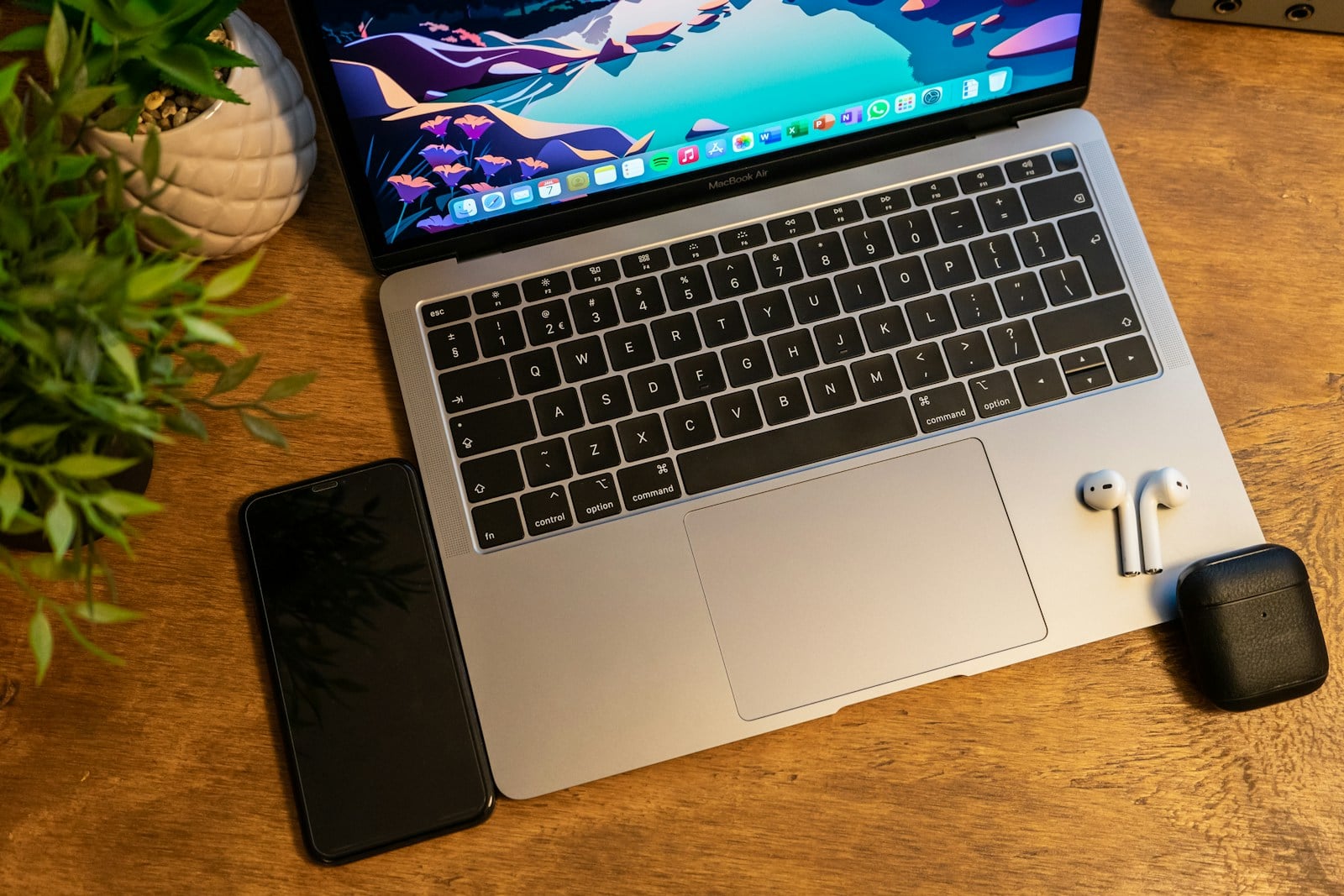
Quick Answer: To pair AirPods to your laptop, place the earbuds in their case with the lid open. Hold the setup button on the back (or double-tap the front for AirPods 4) until the light flashes white. Then, open your laptop’s Bluetooth settings, find your AirPods in the list, and click Connect.
Connecting your favorite white earbuds to a computer shouldn’t feel like a chore. While AirPods are famous for their “magic” pairing with iPhones, they are actually just high-quality Bluetooth headphones at their core. This means whether you are using a sleek MacBook or a powerful Windows machine, you can get your audio up and running in just a few clicks.
If you’ve been wondering how to pair airpods to laptop without the headache of constant disconnecting or “device not found” errors, you’re in the right place. Let’s walk through the steps for every major operating system so you can get back to your music, meetings, or movies.
How to Pair AirPods to Laptop (Windows 10 and 11)
Windows laptops don’t have the “automatic popup” feature that Apple devices do, but the manual process is very straightforward. Whether you have an HP, Dell, Lenovo, or Asus, the steps are nearly identical.
Steps for Windows 11
- Prepare the AirPods: Put both AirPods in the charging case and keep the lid open.
- Enable Pairing Mode: Locate the small circular button on the back of the case. Press and hold it until the status light pulses white.
- Note: For AirPods 4, you’ll need to double-tap the front of the case near the status light instead.
- Open Settings: On your laptop, press the Windows Key + I to open Settings.
- Navigate to Bluetooth: Click on Bluetooth & devices in the left sidebar.
- Add Device: Click the large Add device button at the top, then select Bluetooth.
- Select Your AirPods: Wait for your AirPods to appear in the list. Click on them, and Windows will finalize the connection.

Steps for Windows 10
- Open the Start Menu and click the gear icon (Settings).
- Go to Devices > Bluetooth & other devices.
- Ensure the Bluetooth toggle is switched to On.
- Click Add Bluetooth or other device and choose Bluetooth.
- Put your AirPods in pairing mode (holding the back button until the white light flashes).
- Select your AirPods from the list of discovered devices.
How to Pair AirPods to Laptop (MacBook)
If you use the same Apple ID on your iPhone and your Mac, your AirPods might already be paired. Just click the Sound icon or Control Center in your menu bar and see if they appear under “Output.” If they don’t, here is how to pair them manually.
- Open System Settings: Click the Apple Menu () in the top-left corner and choose System Settings (or System Preferences on older versions).
- Click Bluetooth: Make sure Bluetooth is turned on.
- Put AirPods in Pairing Mode: With the lid open, hold the setup button on the back of the case until the light flashes white.
- Connect: Find your AirPods under the “Nearby Devices” section and click Connect.
According to Apple Support, keeping your macOS updated ensures that features like Automatic Device Switching work more reliably across your hardware.
Quick Comparison: Windows vs. Mac Pairing
| Feature | Windows Laptop | MacBook (macOS) |
| Initial Setup | Manual via Settings | Often automatic via iCloud |
| Battery Status | Requires 3rd party apps or deep settings | Visible in Menu Bar / Control Center |
| Auto-Switching | No | Yes (between Apple devices) |
| Pairing Mode | Hold back button (White light) | Hold back button (White light) |
Troubleshooting Common Pairing Issues
Sometimes technology likes to be stubborn. If you followed the steps on how to pair airpods to laptop but things still aren’t working, check these common roadblocks:
- The “Hogging” Effect: Your AirPods might be currently connected to your iPhone. Turn off Bluetooth on your phone temporarily to let the laptop “grab” the signal.
- Outdated Drivers: On Windows, a common culprit is an old Bluetooth driver. You can update this by right-clicking the Start button, selecting Device Manager, and updating the Bluetooth radio.
- Low Battery: If your case is below 10%, it might struggle to broadcast a pairing signal. Charge them for 15 minutes and try again.
- The Reset Fix: If all else fails, “Forget” the AirPods from all devices, then hold the setup button for 15 seconds until the light flashes amber, then white. This resets the earbuds completely.
For more technical deep-dives into driver issues, HP’s Tech Center offers great advice on resolving Windows-specific Bluetooth conflicts.
Practical Tips and Common Mistakes
- Mistake: Closing the lid too early. You must keep the AirPods case lid open while the laptop is searching for them. Closing the lid usually stops the pairing broadcast.
- Mistake: Not selecting the right output. Sometimes Windows pairs the device but doesn’t automatically switch the sound. Click the Speaker icon on your taskbar and ensure “Headphones (AirPods)” is selected as your playback device.
- Pro Tip: If you use your AirPods with a Windows laptop frequently, consider downloading an app like “MagicPods.” It brings the Apple-style battery popup and ear detection to Windows.
Frequently Asked Questions
1. Why won’t my AirPods show up in the Bluetooth list?
Most likely, they aren’t in “Pairing Mode.” Ensure the light is flashing white. If it’s solid green or amber, the laptop won’t see them. You must hold the button on the back of the case while the lid is open to trigger the discovery phase.
2. Can I use the microphone on my AirPods with a laptop?
Yes, but there’s a catch on Windows. When the microphone is active (like during a Zoom call), Windows switches the audio to “Hands-Free AG Audio,” which has lower sound quality. For the best music experience, make sure the output is set to “Stereo” when you aren’t in a meeting.
3. Do I need to pair them every time I use the laptop?
No. Once you know how to pair airpods to laptop and complete the initial setup, they should stay in your “Saved Devices” list. Usually, just opening the case near your laptop will prompt them to reconnect automatically, provided they aren’t currently “talking” to your phone.
4. Can I pair AirPods to a Chromebook?
Absolutely. Just click the Quick Settings panel (where the clock is), select Bluetooth, and follow the same pairing mode steps using the button on the back of the AirPods case.
5. Why is the sound lagging on my Windows laptop?
Bluetooth latency is common on older laptops. Check if your laptop supports Bluetooth 5.0 or higher. If it’s an older machine, you might experience a slight delay between the video and the audio. Updating your Bluetooth drivers often helps minimize this.