If you’ve ever wondered how to connect Apple Pencil to your iPad, you’re not alone. Whether you’re a digital artist, note-taker, student, or casual user, connecting your Apple Pencil properly ensures seamless functionality and a better iPad experience.
In this comprehensive guide, we’ll walk you through the process of connecting both the 1st generation and 2nd generation Apple Pencil, provide troubleshooting tips, and answer the most common questions users have.
What Is Apple Pencil and Why Use It?
Before diving into how to connect Apple Pencil, let’s briefly understand what it is.
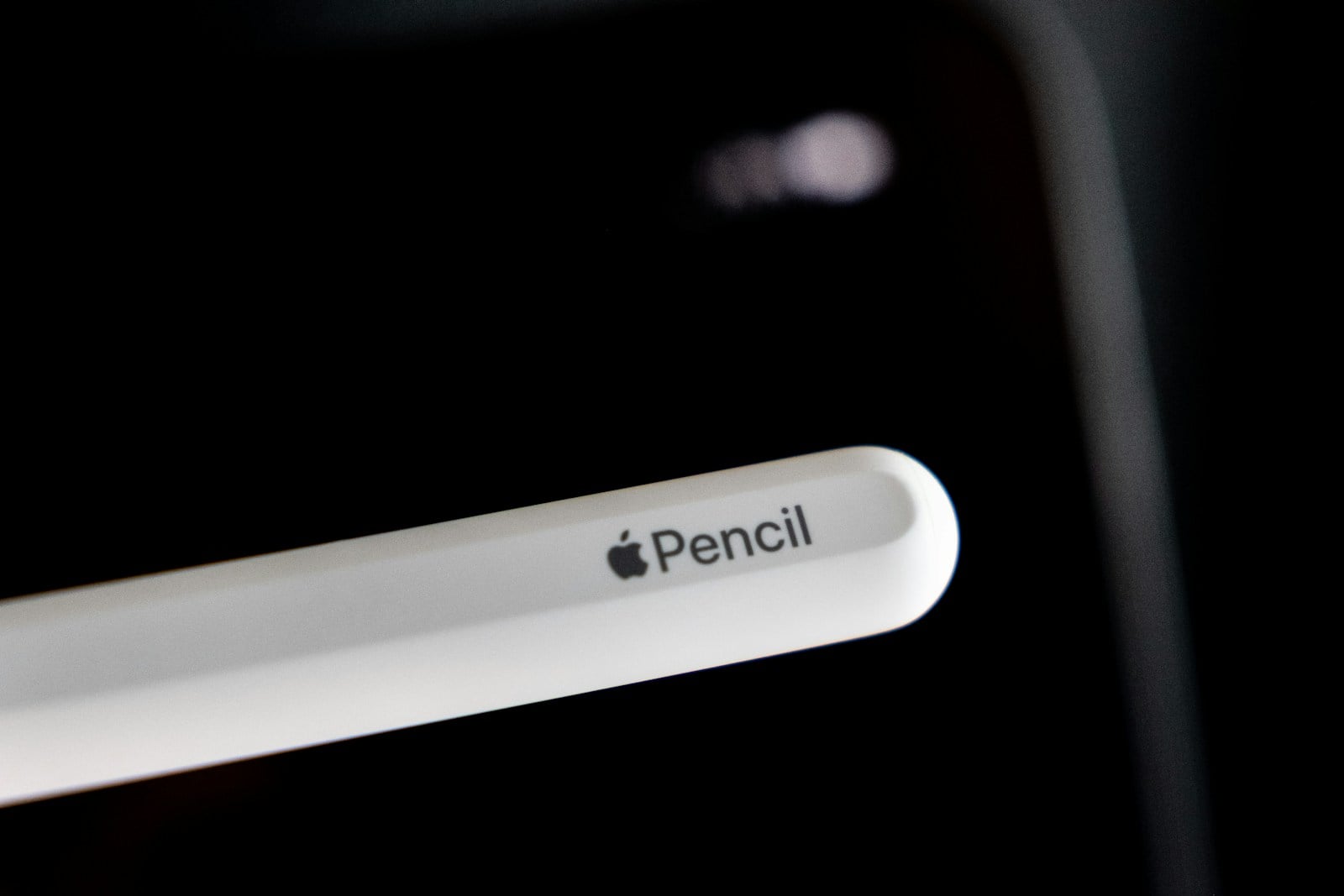
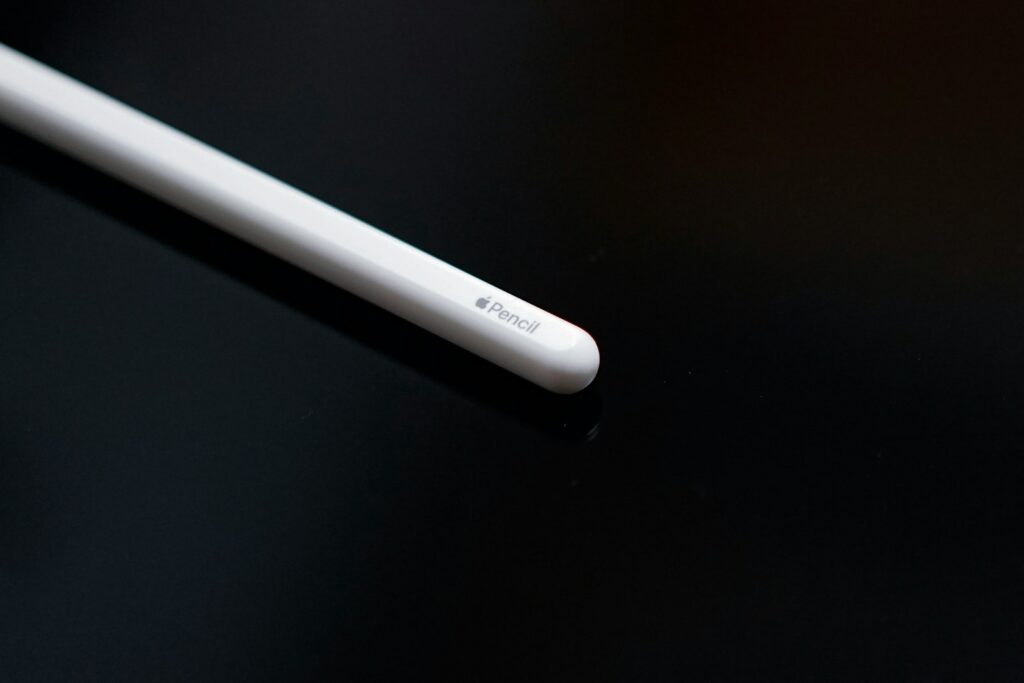
The Apple Pencil is a stylus developed by Apple, designed specifically for the iPad. It allows for precision drawing, handwriting, annotating, and even navigation across iPadOS. There are two generations of Apple Pencil, and each one connects differently depending on your iPad model.
Apple Pencil Benefits:
- Seamless drawing and note-taking experience
- Pressure and tilt sensitivity
- Low latency input
- Palm rejection technology
- Integration with apps like Procreate, Notability, and GoodNotes
Check Compatibility Before Connecting
When learning how to connect Apple Pencil, it’s essential to first check which Apple Pencil model your iPad supports.
Apple Pencil (1st Generation) Compatibility:
- iPad (6th, 7th, 8th, 9th Gen)
- iPad Air (3rd Gen)
- iPad mini (5th Gen)
- iPad Pro 12.9-inch (1st & 2nd Gen)
- iPad Pro 10.5-inch
- iPad Pro 9.7-inch
Apple Pencil (2nd Generation) Compatibility:
- iPad Pro 11-inch (1st Gen and later)
- iPad Pro 12.9-inch (3rd Gen and later)
- iPad Air (4th Gen and later)
- iPad mini (6th Gen)
Tip: You can check your iPad model by going to Settings > General > About.
How to Connect Apple Pencil (1st Generation)
Connecting the 1st Gen Apple Pencil is quick and easy.
Step-by-Step Instructions:
- Remove the Cap:
- At the back of the Apple Pencil is a cap. Pull it off to reveal the Lightning connector.
- Plug into Your iPad:
- Insert the Lightning connector into your iPad’s Lightning port.
- Tap “Pair”:
- A prompt will appear on your screen asking if you’d like to pair the Apple Pencil. Tap “Pair”.
- Start Using:
- Once paired, your Apple Pencil is ready to use instantly with compatible apps.
Note: If your Apple Pencil loses connection, simply plug it in again and tap “Pair” when prompted.
How to Connect Apple Pencil (2nd Generation)
The 2nd Gen Apple Pencil offers a more seamless connection through magnetic pairing.
Step-by-Step Instructions:
- Attach to iPad Side:
- Place the flat side of the Apple Pencil on the magnetic connector on the right edge of the iPad.
- Wait for On-Screen Prompt:
- Your iPad will recognize the Apple Pencil and show a connection animation.
- Automatic Pairing:
- No need to tap or confirm—your Apple Pencil connects automatically.
- Charging Begins:
- Your Apple Pencil will also start charging wirelessly through the magnetic strip.
Pro Tip: If you’re wondering how to connect Apple Pencil and keep it charged, the 2nd Gen version makes both effortless with the magnetic strip.
How to Reconnect Apple Pencil
Sometimes, Apple Pencil disconnects due to inactivity, Bluetooth issues, or iOS updates. Here’s how to reconnect it:
For Apple Pencil 1st Gen:
- Unplug and re-plug into the Lightning port.
- Tap “Pair” again.
For Apple Pencil 2nd Gen:
- Detach and reattach it to the iPad’s magnetic strip.
- Wait for the pairing confirmation.
Still not connecting? Try restarting your iPad and ensure Bluetooth is turned on.
Troubleshooting: Apple Pencil Not Connecting?
If you’re having trouble figuring out how to connect Apple Pencil, don’t worry—here are solutions to common issues:
1. Check Bluetooth:
Go to Settings > Bluetooth and make sure it’s enabled.
2. Charge the Pencil:
Low battery can prevent the Pencil from pairing. Charge it:
- 1st Gen: Plug into iPad or use the charging adapter.
- 2nd Gen: Attach to iPad magnetically.
3. Restart iPad:
Turn your iPad off and back on again to reset any temporary glitches.
4. Forget and Re-Pair:
- Go to Settings > Bluetooth.
- Tap the “i” next to Apple Pencil.
- Tap Forget This Device, then try pairing again.
5. Update iPadOS:
Sometimes, compatibility issues arise with outdated software. Check for updates under Settings > General > Software Update.
How to Check Apple Pencil Battery
Knowing the battery level helps you avoid sudden disconnects.
Here’s how to do it:
- Swipe Right on Home Screen to access the Today View.
- Add the Batteries Widget if not already visible.
- Apple Pencil battery level will appear when it’s connected.
Tips for Better Apple Pencil Connectivity
Beyond knowing how to connect Apple Pencil, these tips can enhance your experience:
- Keep iPadOS Updated: Updates improve connectivity and compatibility.
- Store Apple Pencil Properly: Use the magnetic strip or pencil slot (if available) to avoid misplacement and connection loss.
- Avoid Interference: Remove thick iPad cases that block the magnetic connector.
- Clean Connectors: Dust can affect Lightning port or magnetic connectivity—clean gently if needed.
How to Disconnect Apple Pencil
If you’re switching devices or troubleshooting, here’s how to disconnect:
- Open Settings > Bluetooth
- Find Apple Pencil
- Tap “i” > Forget This Device
This clears the existing pairing and allows connection with a new iPad.
Frequently Asked Questions About Apple Pencil Connection
Can I connect my Apple Pencil to multiple iPads?
No. Apple Pencil can only be paired to one iPad at a time. You’ll need to disconnect it from one iPad before pairing with another.
Why is my Apple Pencil not showing up in Bluetooth?
This is normal. Apple Pencil doesn’t always show in the Bluetooth list. Simply plug it in or attach it magnetically to initiate pairing.
How long does it take for Apple Pencil to pair?
It connects almost instantly—within a few seconds of plugging in or attaching magnetically.
Do I need to pair my Apple Pencil every time?
No. Once paired, the Apple Pencil stays connected unless you restart, reset settings, or pair with another device.
How do I know my Apple Pencil is charging?
- 1st Gen: Look for the charging indicator on-screen when plugged in.
- 2nd Gen: A brief animation will show when attached magnetically to the iPad.
Best Apps to Use After Connecting Apple Pencil
Once you’ve mastered how to connect Apple Pencil, you’ll want to use it to its full potential. Here are some top apps:
- Procreate – Industry-leading app for digital artists.
- GoodNotes – For handwritten notes and digital notebooks.
- Notability – Great for students and educators.
- Adobe Fresco – A powerful tool for sketching and painting.
- Notes – Apple’s built-in app also supports handwriting and markup.
Final Thoughts: Mastering How to Connect Apple Pencil
Knowing how to connect Apple Pencil is the first step toward unlocking the full potential of your iPad. Whether you’re sketching, taking notes, or editing documents, Apple Pencil provides a level of precision and ease unmatched by other styluses.
Key Takeaways:
- Check your iPad’s compatibility before connecting.
- Use the correct connection method based on the Pencil generation.
- Troubleshoot with simple steps if pairing fails.
- Enjoy a wide range of supported apps after setup.
By following the steps in this guide, you’ll have your Apple Pencil connected and ready to use in just a few minutes. Now, go ahead and unleash your creativity or productivity like never before!