MP4 is one of the most popular video file formats, mainly known for its high compression efficiency and broad compatibility across different devices. However, sometimes due to reasons like interrupted file transfer, corrupted storage media, software errors, codec problems, or sudden system shutdowns, your video may get corrupted or won’t play at all. If you ever experience such an issue, don’t lose hope!
Fortunately, there are several video repair methods available online that you can try to restore your video file. In this guide, we’ll explore different methods on how to repair MP4 that are not playing, including both desktop and online tools. Let’s get started!
Why do MP4 Videos Become Unplayable?
There are several reasons which prevent your MP4 video files from playing properly. Some of these include:
- Incomplete Downloads/Transfers: If your MP4 video is not properly downloaded from the internet or transferred between devices, it may not play as expected.
- Codec Problems: If the video player does not have the correct codec for the MP4 file, the file might refuse to play.
- Corrupt Storage Media: If your Memory cards, external drives, or other storage devices where your video was stored get corrupted or develop bad sectors, it can damage files stored on them, including MP4 videos.
- Software or System Crashes: Unexpected crashes during recording or when editing the file can leave the video in an unstable state.
- Virus or Malware Infection: Malicious programs like viruses or malware, when infects your device, can corrupt video files directly or damage the file system where videos are stored.
How do I Repair MP4 Videos That Are Not Playing?
If you ever experience MP4 videos not playing on your PC, it’s important to immediately proceed with appropriate fixes. Here are some quick and easy methods that you can try to repair your unplayable MP4 video files:
Method 01: Repair Videos Using VLC Player
VLC Media Player is a versatile tool which, along with playing video files of multiple file formats, offers basic repair features for corrupted MP4 files. If you are experiencing MP4 video not playing properly, freezing, showing distorted visuals, or missing audio, try VLC to repair it.
Here’s how to repair MP4 videos that are not playing using the VLC player:
- Firstly, launch the VLC media player, go to the “Media” tab and then click “Convert/Save“.
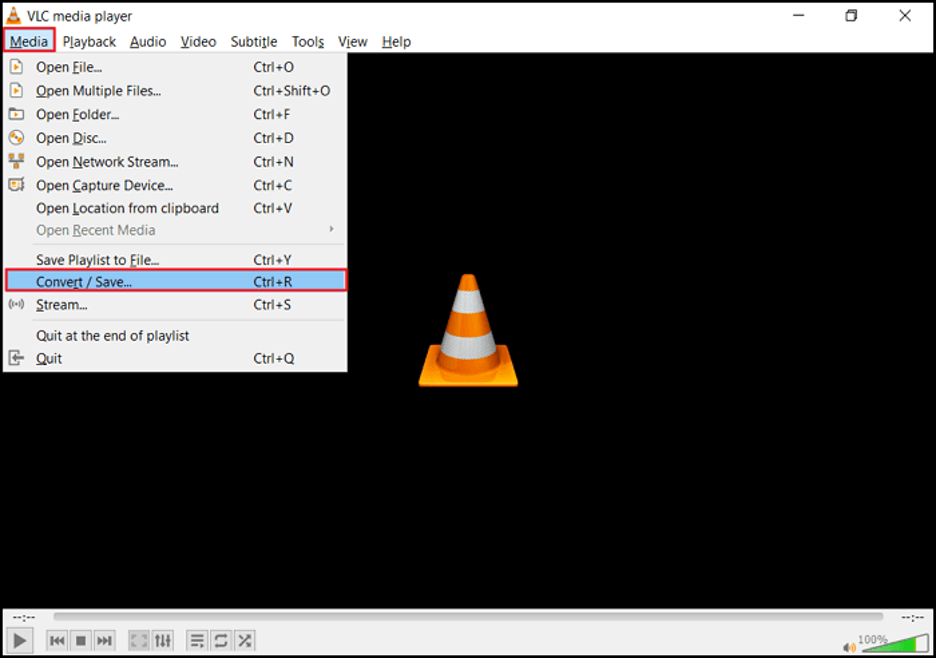
- Click the Add button and upload the damaged MP4 video file you need to repair.

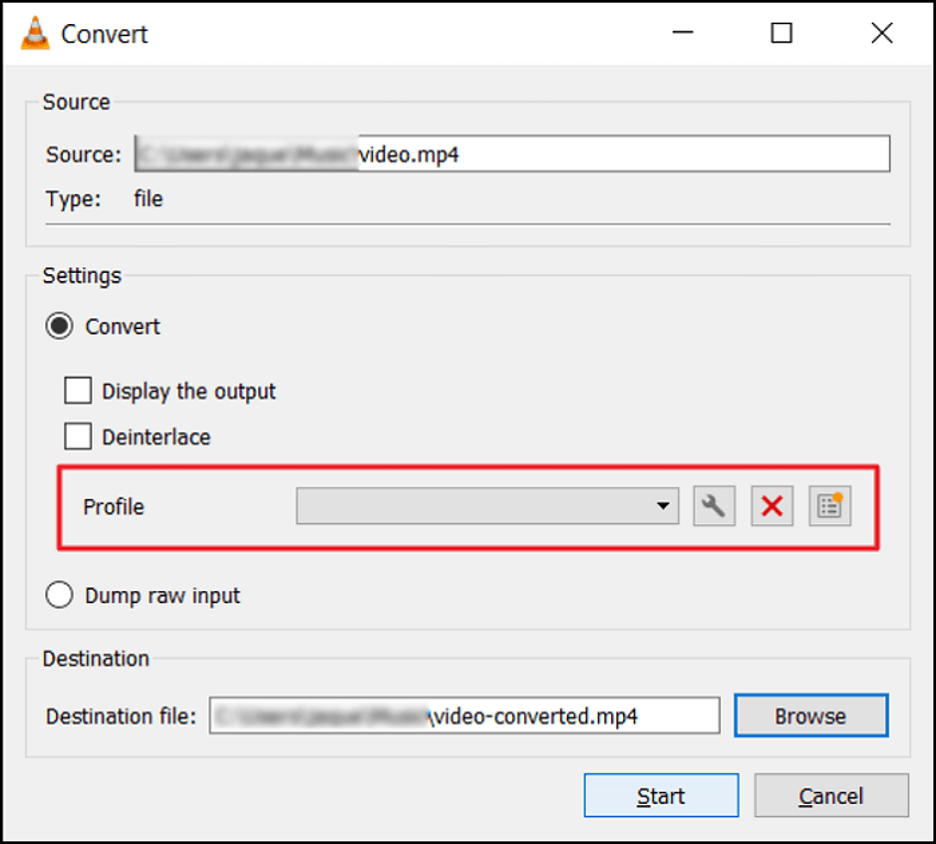
- Now, click on the “Convert/Save”. In the new window that opens, go to the Profile section and choose the desired input codec from the available options.
- Hit the Start button and wait till the software completes the repair process.
Note: VLC works best for minor issues. For severely corrupt MP4 files, you need a dedicated repair tool.
Method 02: Try Third-Party Video Repair Software
If you are looking for a simple and direct approach to repairing MP4 videos, then professional MP4 repair software tools like Stellar Repair for Video can be helpful. This all-in-one video repair software can help you fix MP4 and other video files of different formats in a few simple clicks. This software supports repairing of videos damaged due to missing headers, corrupt frames, audio-video sync problems, broken index, and other reasons.
Key Features of Stellar Repair for Video Tool:
- It supports repairing damaged video files of various file formats (MP4, MOV, AVI, MKV, etc.).
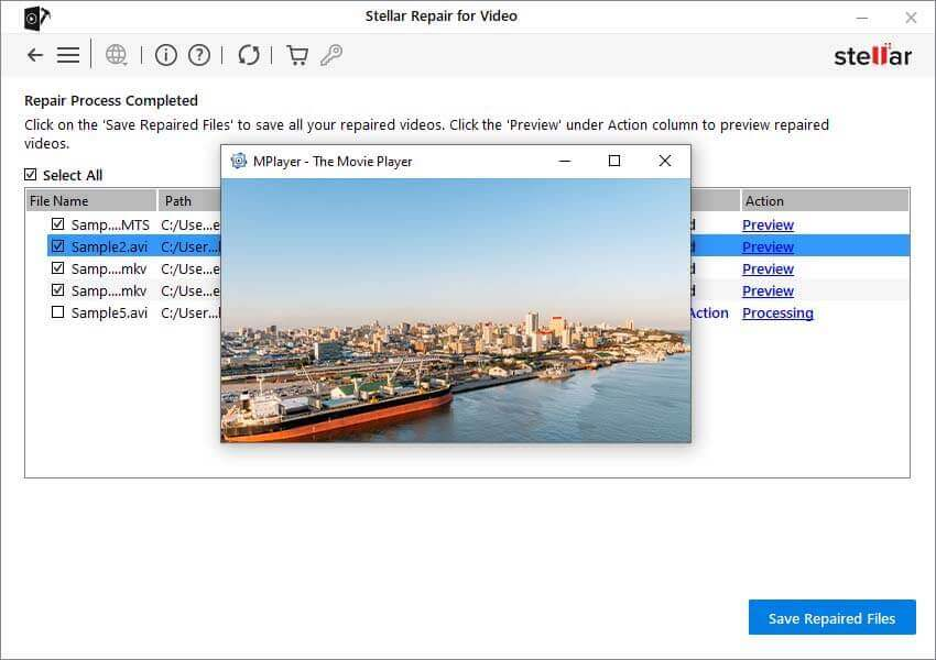
- The Preview feature lets you preview the repaired video files before saving them on your device.
- The software can easily fix corrupt headers, sound issues, and playback errors.
- It can repair video files captured from cameras, drones, phones, and storage devices.
Step-by-Step: How to Use Stellar Repair for Video Software
To repair your MP4 videos that are not playing using this amazing video repair software, you have to follow the below steps:
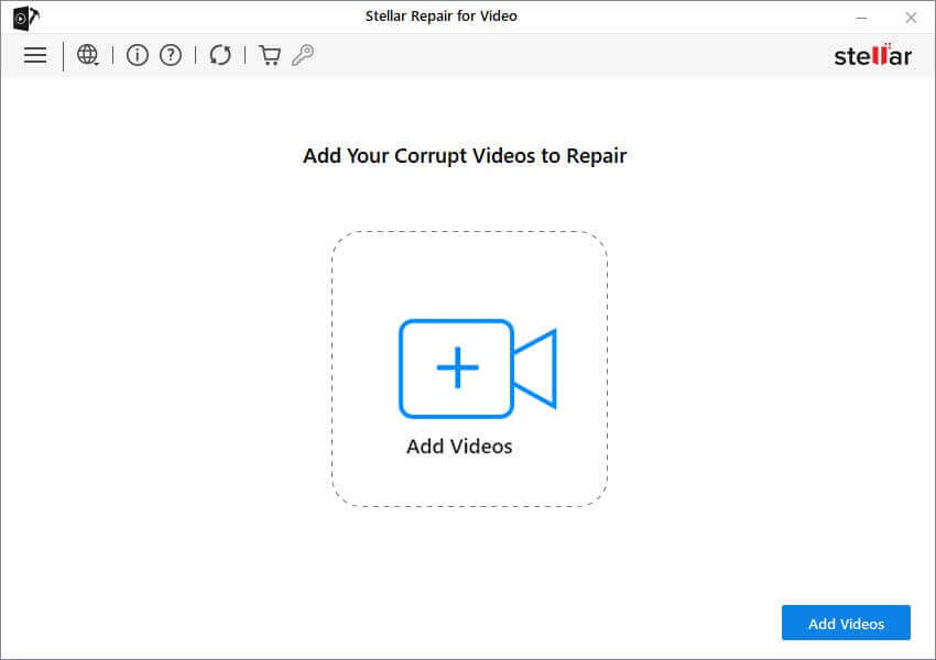
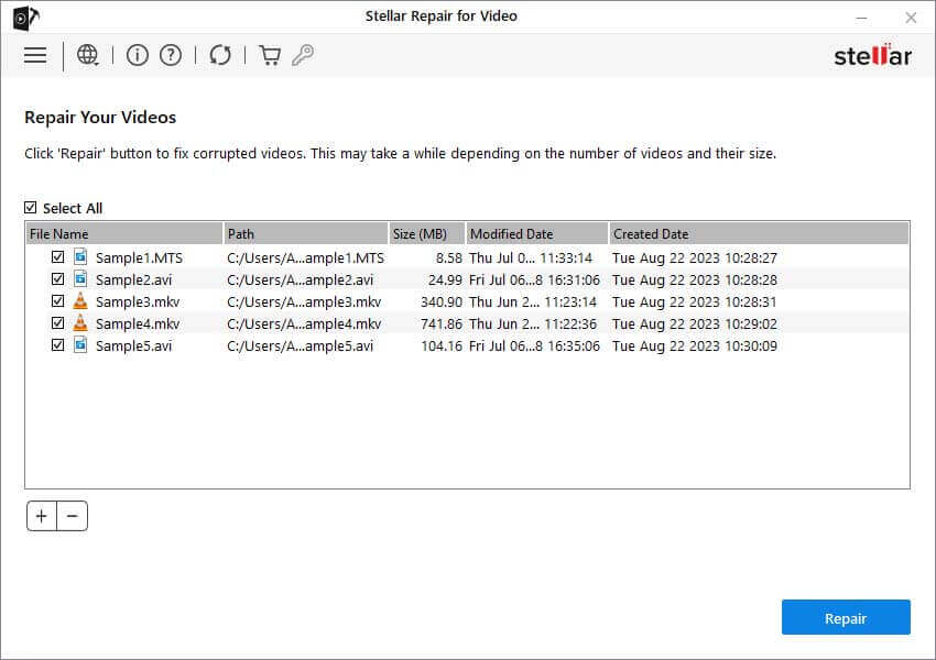
Step 1: Download and install the Stellar Repair for Video software on your computer. Launch the software and click Add Videos to upload one or more MP4 files that won’t play.
Step 2: Click Repair and wait till the repairing process is complete. This process will take from a few minutes to hours, depending on your video size and the type of fixes required.
Step 3: Once done, preview the repaired video files. If the preview looks good, click Save Repaired Files to save them on your PC.
Method 03: Use an Online Video Repair Tool
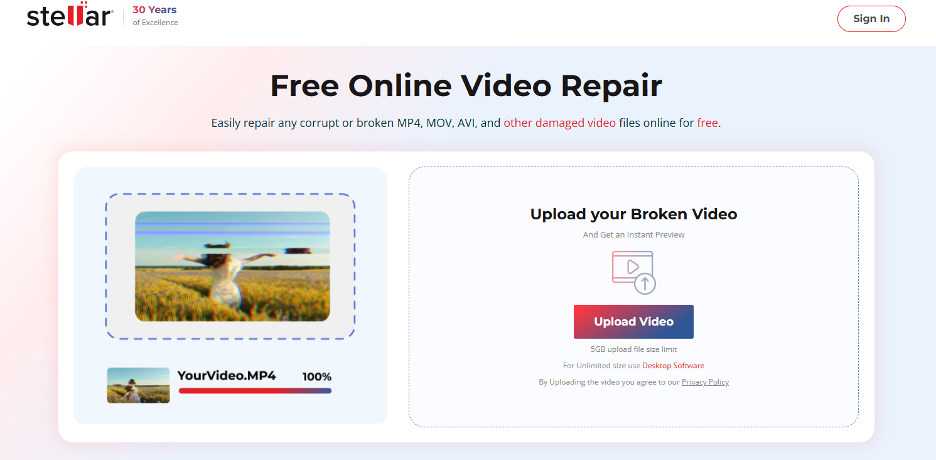
If you don’t want to install any additional software on your PC, you can repair MP4 videos using online video repair software. Stellar Repair for Video Online is a cloud-based tool for repairing corrupt videos of several file formats, including your MP4 videos. The tool repairs common issues such as damaged headers, broken file structure, playback errors, and incomplete recordings. It is especially useful for moderately corrupted videos that are small to medium in size. It allows you to repair your damaged videos directly from your web browser, i.e., no installation required.
When to Choose an Online Video Repair Tool?
Online video repair tools like Stellar Repair for Video Online are ideal when:
- Your video file is relatively small.
- The corruption is moderate (e.g., video not playing, minor distortion).
- You don’t need to install any desktop software.
- You need a quick repair solution.
Comparing Stellar Repair for Video Software and Stellar Online Video Repair
When choosing the right tool to fix your damaged MP4 files, it’s important to understand the differences between Stellar Repair for Video (Desktop version) and Stellar Online Video Repair:
| Feature | Stellar Repair for Video (Desktop) | Stellar Online Video Repair |
| Installation | Required | Not required |
| File Size Limit | No strict limit | Limited by upload/download size |
| Internet Requirement | No | Yes |
| Batch Repair | Yes | Typically No |
| Advanced Repairs | Yes (deep scan) | No |
| Preview Before Save | Yes | Depends on upload |
| Best For | Severe corruption, large files | Quick repair for smaller files |
Additional Tips: How to Avoid MP4 Video Corruption?
Fixing videos is one thing — preventing corruption is even better. Here are some additional tips that you can consider to avoid such MP4 video damage/corruption issues:
- Safely Eject Storage Devices: Always use the “Safely Remove Hardware” option before unplugging USB drives, external hard disks, or memory cards.
- Avoid Interruptions During Transfer: Do not disconnect cables, shut down your system, or remove memory cards while videos are being copied or moved.
- Use Reliable Antivirus Software: Viruses and malware can corrupt video files or damage the file system. To avoid this, you can install a trusted antivirus program and avoid downloading videos or software from unknown sources.
- Create Regular Backups: Ensure you have at least one backup copy of important videos. Use cloud storage, external hard drives, or both. Backup is the best protection against permanent loss.
Conclusion
While MP4 corruption can happen unexpectedly, there are several methods available that you can try to repair your damaged MP4 video files. With the aforementioned video repair fixes, you can easily regain access to your MP4 video files. For this, start with simple fixes, such as changing your media player or using the VLC in-built video repair feature. If this fails, you can use the third-party Stellar Repair for Video tool for deep, robust repair of severely corrupted files and batch recovery. Also, try Stellar Online Video Repair for quick online fixes of your MP4 files.
By following these methods — and choosing the right tool for your situation — you can bring your MP4 videos back to life and enjoy your memories or work without interruption.