

Key Takeaways
If your Roku remote is not working even with new batteries, the issue may be due to pairing problems, obstruction between the remote and Roku device, outdated firmware, or even hardware malfunction. A few simple troubleshooting steps can usually fix it without needing a replacement.
Having your Roku remote not working with new batteries can be incredibly frustrating—especially when you’re ready to kick back and stream your favorite show. The good news is this issue is surprisingly common and often easy to fix. Whether you’re using a basic infrared remote or an enhanced voice remote, let’s walk through what could be going wrong and how to get your Roku back in action.
Why Your Roku Remote Isn’t Responding with Fresh Batteries
Fresh batteries should mean everything works smoothly, right? Not always. Here are some of the most common reasons your Roku remote is unresponsive even with new batteries:
- The remote needs to be re-paired
- Obstruction or interference between the remote and Roku device
- Dead or incompatible batteries (yes, even new ones)
- Software or firmware issues
- Hardware damage or faulty remote
- Wi-Fi interference (for remotes that connect via Wi-Fi)
Let’s break these down and show you how to troubleshoot them step-by-step.
1. Check the Batteries Again (Yes, Really)
Even though you just changed the batteries, there’s still a chance they’re not working as expected. Here’s why:
- Some “new” batteries lose power if stored for a long time
- Incompatible battery brands or types may cause glitches
- Batteries may not be properly inserted (double-check polarity)
Pro Tip: Try a different set of high-quality alkaline batteries. Avoid mixing old and new batteries or different brands.
2. Re-Pair the Roku Remote to Your Device
If you’re using a Roku voice remote (which connects via Wi-Fi), it may have become unpaired. This often happens after a system update, battery change, or power outage.
Steps to re-pair your Roku remote:
- Remove the batteries from the remote
- Unplug your Roku player or TV
- Wait 10 seconds, then plug it back in
- When the Roku logo appears, reinsert the batteries
- Press and hold the pairing button inside the battery compartment for 5 seconds or until the pairing light starts flashing
- Wait for the remote to reconnect. It may take up to 30 seconds
If your remote doesn’t have a pairing button, it’s likely an IR (infrared) model. Skip to the next step.
3. Test for Line-of-Sight Issues (IR Remotes Only)
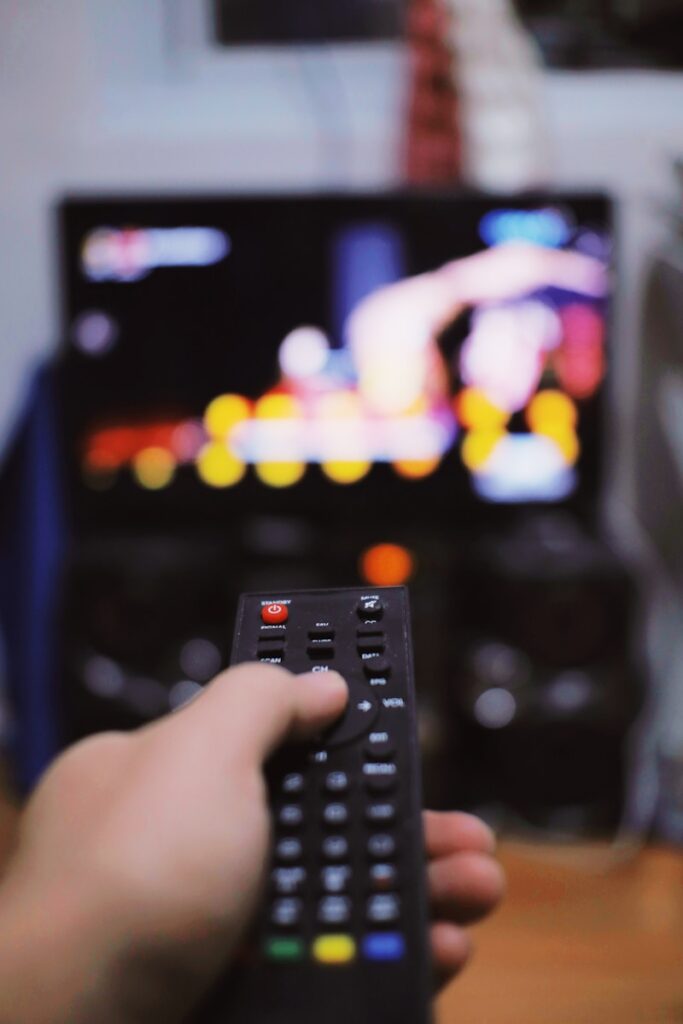
Basic Roku remotes use infrared signals, which require a clear line of sight to your Roku device. Make sure:
- The front of your Roku device isn’t blocked by furniture, TVs, or soundbars
- You’re pointing the remote directly at the receiver
- You’re close enough—ideally within 15 feet
Common mistake: Trying to use an IR remote with a Roku Streaming Stick, which requires a Wi-Fi remote instead.
4. Restart Your Roku Device
Sometimes the problem isn’t the remote—it’s the Roku itself.
To restart without a remote:
- Unplug the power cable from your Roku device
- Wait 10 seconds
- Plug it back in and wait for it to boot up
If you have a Roku TV, use the physical power button on the TV (usually at the bottom or back) to turn it off and on again.
5. Use the Roku Mobile App as a Temporary Remote
If none of the above steps work, the Roku mobile app can be a lifesaver.
How to use it:
- Download the Roku app from the App Store or Google Play
- Make sure your phone and Roku device are on the same Wi-Fi network
- Open the app and select your Roku device
- Use the remote tab to control your TV or streaming stick
This trick is helpful when re-pairing or navigating settings if your physical remote is completely unresponsive.
6. Replace the Remote (if It’s Faulty)
If all else fails, your remote may be damaged beyond repair. Water damage, drops, or internal wear can break the components inside. You can find replacement Roku remotes on the official Roku accessories store or retailers like Best Buy and Amazon.
Make sure to match the replacement with your specific model (Streaming Stick, Roku Ultra, Roku TV, etc.).
Common Mistakes to Avoid
- Mixing battery types: Always use the same type and brand of battery
- Forgetting to check the battery orientation
- Ignoring the pairing process after battery replacement
- Assuming all remotes are interchangeable across Roku models
- Blocking the IR receiver with objects or decorations
Quick Comparison Table: Roku Remotes
| Feature | IR Remote (Basic) | Enhanced Voice Remote |
|---|---|---|
| Uses line of sight | Yes | No |
| Requires pairing | No | Yes |
| Works with Roku Stick | No | Yes |
| Voice controls | No | Yes |
| Has pairing button | No | Yes (inside battery slot) |
Practical Examples
Case 1:
Sarah replaced the batteries in her Roku remote but didn’t realize her cat had knocked over a plant in front of the Roku device. Once she cleared the line of sight, the remote started working again.
Case 2:
Mark bought discount batteries from a gas station. His Roku remote worked for one minute and then died again. A fresh pair of Energizers fixed the issue.
Case 3:
Lina didn’t know she had to re-pair her enhanced remote after a software update. Once she held down the pairing button, everything synced up.
Pros and Cons of Roku Voice Remotes
Pros:
- Doesn’t need to be aimed at the Roku device
- Offers voice control for faster searching
- Can control TV power and volume
Cons:
- Needs to be paired manually
- Requires Wi-Fi, so setup is trickier
- Slightly more expensive to replace
Step-by-Step: Resetting Roku Remote and Device
- Remove batteries from the remote
- Unplug the Roku device
- Wait 10–15 seconds
- Plug Roku back in
- Reinsert batteries into the remote
- Hold the pairing button until the light flashes
- Wait for the pairing confirmation on screen
This reset process solves a majority of unresponsive remote issues.
FAQ: Roku Remote Not Working with New Batteries
Why is my Roku remote still not working after changing batteries?
It might have lost its pairing with the Roku device or there could be an issue with the batteries or signal. Check for pairing button and re-sync the remote if needed.
How do I know if my Roku remote is IR or Wi-Fi?
If it works without pointing directly at the Roku, it’s a Wi-Fi (Enhanced) remote. IR remotes need a direct line of sight and don’t need pairing.
Can I control Roku without a remote?
Yes. Download the Roku mobile app and use it as a remote over Wi-Fi. It’s free and available for both iOS and Android.
Do Roku remotes go bad over time?
Yes, just like any electronic device, remotes can wear out—especially after drops, spills, or extended use.
What if the Roku app can’t find my device?
Make sure your phone and Roku are on the same Wi-Fi network. If your Roku was recently reset, you may need to set it up again using the app.
Where can I buy a replacement Roku remote?
You can purchase one from Roku’s official store or trusted retailers like Best Buy and Amazon.
Final Thoughts
When your Roku remote stops working even with new batteries, it’s usually a fixable issue—often caused by a pairing glitch, signal blockage, or overlooked reset. Take it step-by-step, try the mobile app as a backup, and don’t rush to replace your remote unless you’re sure it’s faulty. A few minutes of troubleshooting can save you money and get your streaming night back on track.
If you’re still stuck after trying all of the above, Roku’s support center has detailed guides and tools to help you further.







