If you find a plugin not working in wordpress, the most effective solution is to deactivate all plugins and switch to a default theme like Twenty Twenty-Four. This process of elimination helps you quickly identify if a specific tool or your theme is causing a code conflict. If the issue persists, checking your PHP version or increasing the memory limit often solves the problem.
Common Reasons for Plugin Failures
Before diving into the fixes, it’s helpful to understand why things go sideways. Most issues stem from a few predictable culprits:
- Software Conflicts: Two plugins trying to perform the same task simultaneously.
- Theme Incompatibility: Your theme’s code clashing with a plugin’s functions.
- Outdated PHP: Your server running an old version of PHP that the plugin no longer supports.
- Memory Limits: The plugin requires more “brain power” (RAM) than your hosting allows.
- Caching Issues: Your browser or site is showing an old, “broken” version of the page.
Step-by-Step Guide to Fix a Plugin Not Working in WordPress
If your site is acting up, follow these steps in order to get back on track.
1. Clear All Caches
Start with the easiest fix. Clear your browser cache and your WordPress caching plugin (like WP Rocket or W3 Total Cache). Sometimes the plugin is actually working, but you’re seeing a cached version of the error.
2. The Deactivation Test
This is the “gold standard” of troubleshooting.
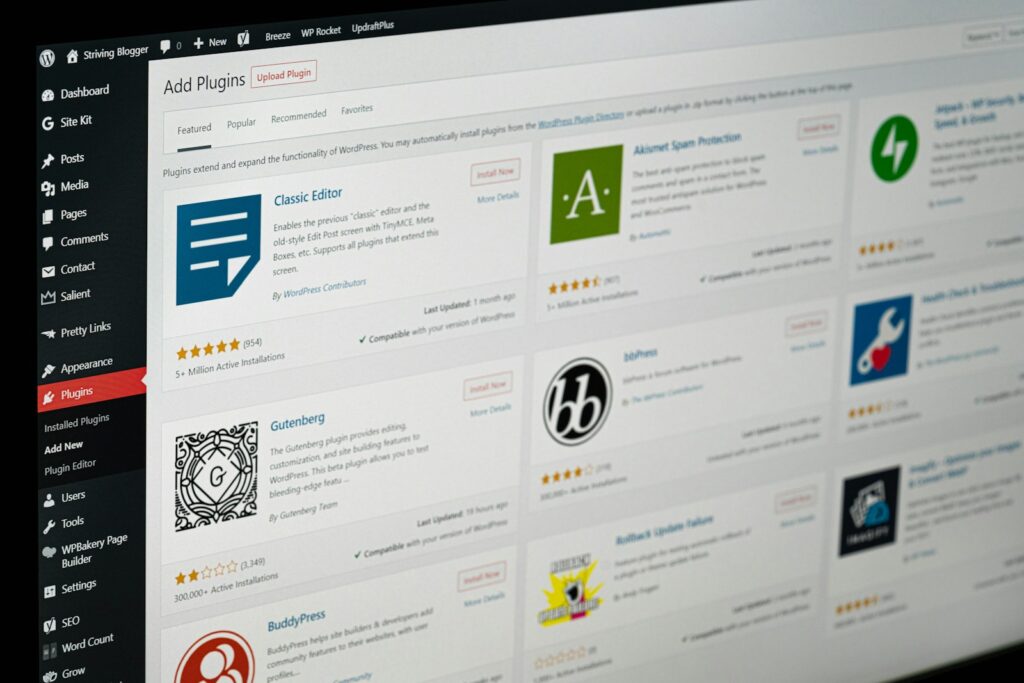
- Go to Plugins > Installed Plugins.
- Select all plugins and choose Deactivate from the bulk actions menu.
- Check your site. If the problem is gone, one of those plugins was the culprit.
- Reactivate them one by one. Check your site after each activation. The moment the site breaks, you’ve found the “guilty” plugin.
3. Switch to a Default Theme
Sometimes the plugin is fine, but your theme is fighting it. Temporarily switch your active theme to a default one like Twenty Twenty-One. If the plugin starts working, you’ll need to contact your theme developer or find a more compatible alternative.
4. Enable WordPress Debug Mode
If you’re seeing a blank screen (the “White Screen of Death”), you need to see the actual error messages. You can do this by editing your wp-config.php file via FTP or your hosting File Manager. Find the line that says define( 'WP_DEBUG', false ); and change it to true.
5. Check PHP Version and Memory
Many modern plugins require PHP 7.4 or higher. Check your WordPress Site Health tool to see your current version. If it’s outdated, you can usually update it through your hosting control panel (cPanel). Additionally, you can increase your memory limit by adding define('WP_MEMORY_LIMIT', '256M'); to your wp-config.php file.
Quick Comparison: Troubleshooting Methods
| Method | Best For… | Difficulty |
| Clear Cache | Minor visual glitches | Very Easy |
| Bulk Deactivation | Identifying conflicting plugins | Easy |
| Theme Switching | Identifying theme/code clashes | Moderate |
| Debug Mode | Fixing “White Screen of Death” | Advanced |
| PHP Update | Performance and compatibility | Moderate |
Practical Examples and Common Mistakes
The “Double Up” Mistake
A common reason for a plugin not working in wordpress is having two plugins that do the same thing. For example, running two different SEO plugins (like Yoast and Rank Math) or two different caching plugins at the same time is a recipe for disaster. They will fight for control over your site’s headers and code, often resulting in neither working.
The “Update All” Trap
It’s tempting to hit “Update All” the moment you see notifications. However, if you haven’t backed up your site recently, a single incompatible update can take everything down. Always check the “Changelog” of a plugin before updating to see if there are known issues with your current WordPress version.
Pros and Cons of Different Fixes
Manual Troubleshooting
- Pros: Totally free; gives you a deep understanding of how your site works.
- Cons: Time-consuming; can be intimidating for beginners.
Using a Troubleshooting Plugin
Tools like the Health Check & Troubleshooting plugin allow you to deactivate plugins for your view only, without affecting what your visitors see.
- Pros: Doesn’t take your site offline for users.
- Cons: Adds another plugin to your site (ironically).
FAQ: Solving WordPress Plugin Issues
Why did my plugin suddenly stop working?
Usually, this happens after a WordPress core update or an update to your theme. The code that worked yesterday might be deprecated (outdated) today.
Can a plugin break my whole website?
Yes. A “Fatal Error” in a plugin’s code can trigger the White Screen of Death. If this happens, you’ll need to access your site via FTP and rename the plugin’s folder to deactivate it manually.
Should I delete or just deactivate a broken plugin?
Deactivate it first while you investigate. If you find a better alternative or realize the plugin is no longer supported by the developer, then delete it to keep your database clean. According to WP Engine’s guide on plugin conflicts, keeping unused plugins can also be a security risk.
How do I contact a plugin developer for help?
If it’s a free plugin, go to the “Support” tab on its page in the WordPress.org repository. For premium plugins, visit the developer’s official website and look for a help desk or ticket system.
Is there a limit to how many plugins I should have?
There is no “magic number,” but quality matters more than quantity. One poorly coded plugin can do more damage than twenty well-coded ones.
If you are still struggling with a plugin not working in wordpress, would you like me to walk you through how to access your site’s error logs via FTP?
This video provides a visual, step-by-step walkthrough of the deactivation process and theme-switching techniques mentioned in the article.