Key Takeaways
Setting up Apple CarPlay is easy—just connect your iPhone via USB or wirelessly (if your car supports it), and you’ll get instant access to calls, messages, music, maps, and more, all from your dashboard. It’s designed to minimize distractions and make your driving experience safer and smarter.
If you’re wondering how to set up Apple CarPlay, the process is more straightforward than you might think. Whether you drive a brand-new vehicle or one a few years old, most modern infotainment systems make the connection seamless. In just a few steps, your iPhone can become an extension of your car, giving you hands-free access to essential apps.
Let’s walk through everything you need to know—from compatibility to common pitfalls and handy tips.
What You’ll Need Before Setting Up Apple CarPlay
Before jumping into the setup, make sure you’ve got the following:
- An iPhone 5 or newer running iOS 7.1 or later
- A Lightning-to-USB cable (unless your car supports wireless CarPlay)
- A vehicle or aftermarket stereo system that supports Apple CarPlay
Some manufacturers may require you to enable CarPlay in the vehicle’s infotainment settings before it appears on the screen.
How to Set Up Apple CarPlay (Wired & Wireless Methods)
1. Connect via USB
- Start your car and make sure Siri is enabled on your iPhone.
- Plug your iPhone into the car’s USB port using a certified Lightning cable.
- A prompt may appear on your iPhone asking you to allow CarPlay while the phone is locked—tap Allow.
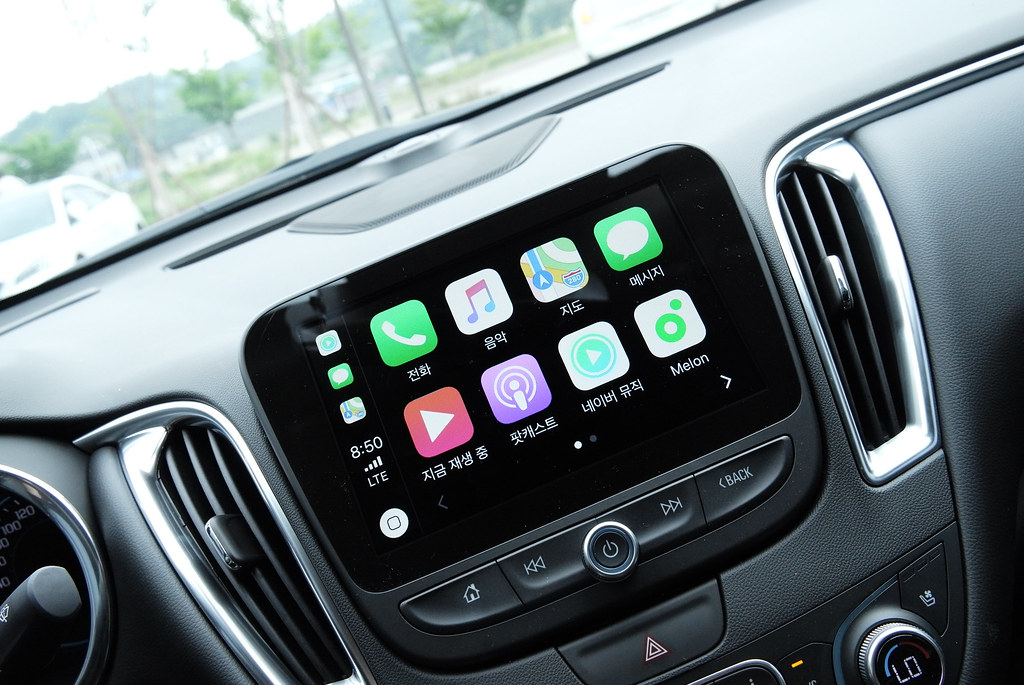
- Your infotainment screen should automatically switch to the CarPlay interface.
- If not, navigate to the CarPlay icon manually from the home screen of your car’s display.
2. Set Up Wireless CarPlay
Wireless CarPlay is supported in many newer vehicles. Here’s how to activate it:
- Make sure your car supports wireless CarPlay.
- On your iPhone, go to Settings > General > CarPlay > Available Cars.
- Put your car in Bluetooth or wireless pairing mode.
- Your iPhone should detect the car. Tap on your car’s name.
- Follow the on-screen instructions to complete the pairing.
Once paired, CarPlay should automatically launch every time you start the car.
Customize Your CarPlay Experience
You can rearrange app icons, remove certain apps, and prioritize the ones you use most.
- Go to Settings on your iPhone
- Tap General > CarPlay
- Select your vehicle under “My Cars”
- Tap Customize
Here, you can:
- Reorder apps by dragging them
- Remove apps by tapping the red minus icon
- Add supported apps that are not currently on CarPlay
Quick Comparison: Wired vs Wireless CarPlay
| Feature | Wired CarPlay | Wireless CarPlay |
|---|---|---|
| Setup Time | Plug & play | Initial Bluetooth setup |
| Connection Stability | More stable | May occasionally drop |
| Charging While in Use | Yes | No (unless using wireless charging) |
| Battery Drain | None | Uses phone battery |
| Car Compatibility | More universal | Limited to newer models |
Pros and Cons of Apple CarPlay
Pros
- Hands-free functionality with Siri for safer driving
- Seamless integration with apps like Apple Maps, Messages, and Spotify
- Reduces distractions by simplifying access to phone functions
- Automatically syncs recent destinations and contacts
Cons
- Not all apps are supported
- Wireless CarPlay may consume battery quickly
- Occasional connectivity bugs, especially with aftermarket systems
- Requires a compatible iPhone and vehicle
Common Mistakes When Setting Up Apple CarPlay
1. Using a Non-Certified Cable
Cheap third-party cables may not support data transfer, causing CarPlay to not launch. Always use an MFi-certified Lightning cable for best results.
2. Bluetooth Conflicts
For wireless CarPlay, having too many paired Bluetooth devices can cause interference. Unpair any unnecessary devices before setup.
3. Outdated iOS Version
If your iPhone hasn’t been updated in a while, CarPlay might not function properly. Ensure you’re running the latest version of iOS.
4. Settings Not Enabled
Some cars require you to manually activate CarPlay in the infotainment settings before it appears. Double-check your vehicle’s manual if you’re stuck.
Real-Life Example: Setting Up CarPlay in a Toyota
Let’s say you drive a Toyota Corolla that supports wired CarPlay. You plug in your iPhone, but nothing happens. Here’s what you might do:
- Navigate to Menu > Setup > General in the car’s system
- Scroll down to Apple CarPlay Settings
- Turn CarPlay ON if it’s disabled
- Reconnect your phone
Within seconds, your infotainment screen should display CarPlay.
Tips to Enhance Your CarPlay Experience
- Use Siri Shortcuts to automate tasks like sending ETA or playing a playlist
- Download third-party apps that are CarPlay compatible (e.g., Waze, Audible, WhatsApp)
- Update apps regularly to ensure smooth performance
- Set a driving focus mode on your iPhone to avoid distractions
Is Apple CarPlay Safe to Use While Driving?
Apple CarPlay is designed with safety in mind. With voice control and simplified touch interactions, it reduces the urge to look at your phone while driving. However, it’s still up to the driver to use it responsibly. The National Highway Traffic Safety Administration (NHTSA) recommends keeping eyes on the road and hands on the wheel whenever possible source.
Frequently Asked Questions
How do I know if my car supports Apple CarPlay?
Check your vehicle’s manual or visit the official Apple CarPlay list of compatible models to verify support. Many models from brands like Ford, Honda, BMW, and Toyota now offer it.
Can I use Apple CarPlay with an Android phone?
No, Apple CarPlay is only compatible with iPhones. If you use an Android phone, look into Android Auto instead.
Do I need to install an app to use Apple CarPlay?
No separate app is needed. CarPlay is built into iOS. Just plug in your iPhone or connect wirelessly and follow the on-screen prompts.
Why won’t my iPhone connect to CarPlay?
It could be due to a faulty cable, outdated iOS, Bluetooth conflicts, or a disabled CarPlay setting in your car. Try restarting your iPhone and car system, or refer to your car’s manual for troubleshooting tips.
Can I add more apps to Apple CarPlay?
You can’t install apps to CarPlay, but any CarPlay-compatible app already on your iPhone will appear once connected. You can manage them in Settings > General > CarPlay.
Is there a monthly fee for using Apple CarPlay?
No, Apple CarPlay is completely free. However, some streaming apps or features (like cellular data) may incur costs based on your phone plan.
Useful External Resources
- Apple’s official CarPlay support page
- NHTSA’s driver distraction guidelines
Apple CarPlay is all about making your drive smarter, not more complicated. Once you’ve set it up, it becomes second nature—whether you’re navigating a new city, calling a friend hands-free, or switching playlists with a quick voice command. As long as your phone and vehicle are compatible, setting up CarPlay takes just minutes and opens the door to a much more connected, safer driving experience.